
GitHub Actions is a continuous integration and continuous delivery (CI/CD) platform within GitHub that allows us to automate our build, test, and deployment processes. With GitHub Actions, we can create workflows to trigger build and test on every pull request to our repository or deploy merged pull requests to desired environments (such as dev, test, prod...).
GitHub Actions are not exclusively intended for DevOps purposes, they can be used for other needs as well. For example, with GitHub Actions, we can manage tasks on GitHub Project Boards, automate certain comments on pull requests if needed, send notifications if someone creates an issue in our repository, and so on.
GitHub Actions indeed have a wide range of applications, but in this blog, we'll focus on CI/CD processes using GitHub Actions.
Components of GitHub Actions
To understand the entire CI/CD automation using GitHub Actions, it's necessary to first understand the components of GitHub Actions. The fundamental components of GitHub Actions are:
- Workflows
- Events
- Jobs
- Steps
- Actions
- Runners
Workflows
A workflow is an automated procedure that we can add to a repository. It consists of one or more jobs that can be triggered via events or scheduled. Workflows are YAML files located in a specific directory, which is '.github/workflows' , within the repository where we want to define these desired automated processes. Each repository can have multiple different workflows, allowing each of them to execute a different set of tasks or commands.
Events
An event is a specific activity within a repository that triggers the execution of a workflow or a particular job or step within the workflow. Additionally, workflows can be triggered via scheduled events, through the REST API, or even manually. For example, a workflow can be triggered when someone opens an issue, posts a comment, or pushes a commit to the repository. Some of the events that can trigger a workflow include push, pull_request, release, and so on . For a detailed list of these events that trigger workflows, you can refer to Events that trigger workflows official GitHub documentation.
Jobs
A job is a set of steps within a workflow. If one step within the job fails, the entire job will fail. Each job runs on a separate runner and can be viewed as completely separate entities. So if we have 5 jobs within one workflow, each of those jobs will have its own new fresh runner on which it runs. These jobs can be dependent on each other. By default, jobs have no dependencies, and all jobs within a workflow execute at the same time. If one job depends on another job, it will start running after the job it depends on finishes. Additionally, one job can depend on multiple other jobs .
Steps
Steps are individual tasks within a job that can execute a specific command or action. Unlike jobs, each step executes on the same runner. Since these steps run on the same runner, it's possible to share data between them. For example, we can have one step that builds our application, followed by a step that tests that built application. Steps are executed in the order they are listed and are dependent on each other. If one of the steps fails, the steps that follow it will not be executed , i.e., they will be skipped unless it's clearly specified in the next step that it should run if any previous step has failed.
Actions
Actions are custom applications designed for the GitHub Actions platform. They execute more complex tasks that are often repetitive. They are commonly used to reduce code repetition. For example, if we use a script in multiple places, we can instead create our action and reference it. We can write our own actions or find actions already created by others on the GitHub Marketplace and use them in our workflows. If using actions from the GitHub Marketplace, it is recommended to use actions created by creators verified by GitHub .
Runners
A runner is a server where our workflow runs. As mentioned earlier, only one job can be executed on a single runner. GitHub provides Ubuntu Linux, Microsoft Windows, and macOS runners to run our workflows. GitHub also offers larger runners, which are runners with enhanced features supporting more customized use cases. Large runners have more RAM, CPU, and disk space, they can have a static IP address, auto-scaling, and so on. If we need a different operating system or require some custom configuration, we can use self-hosted runners.
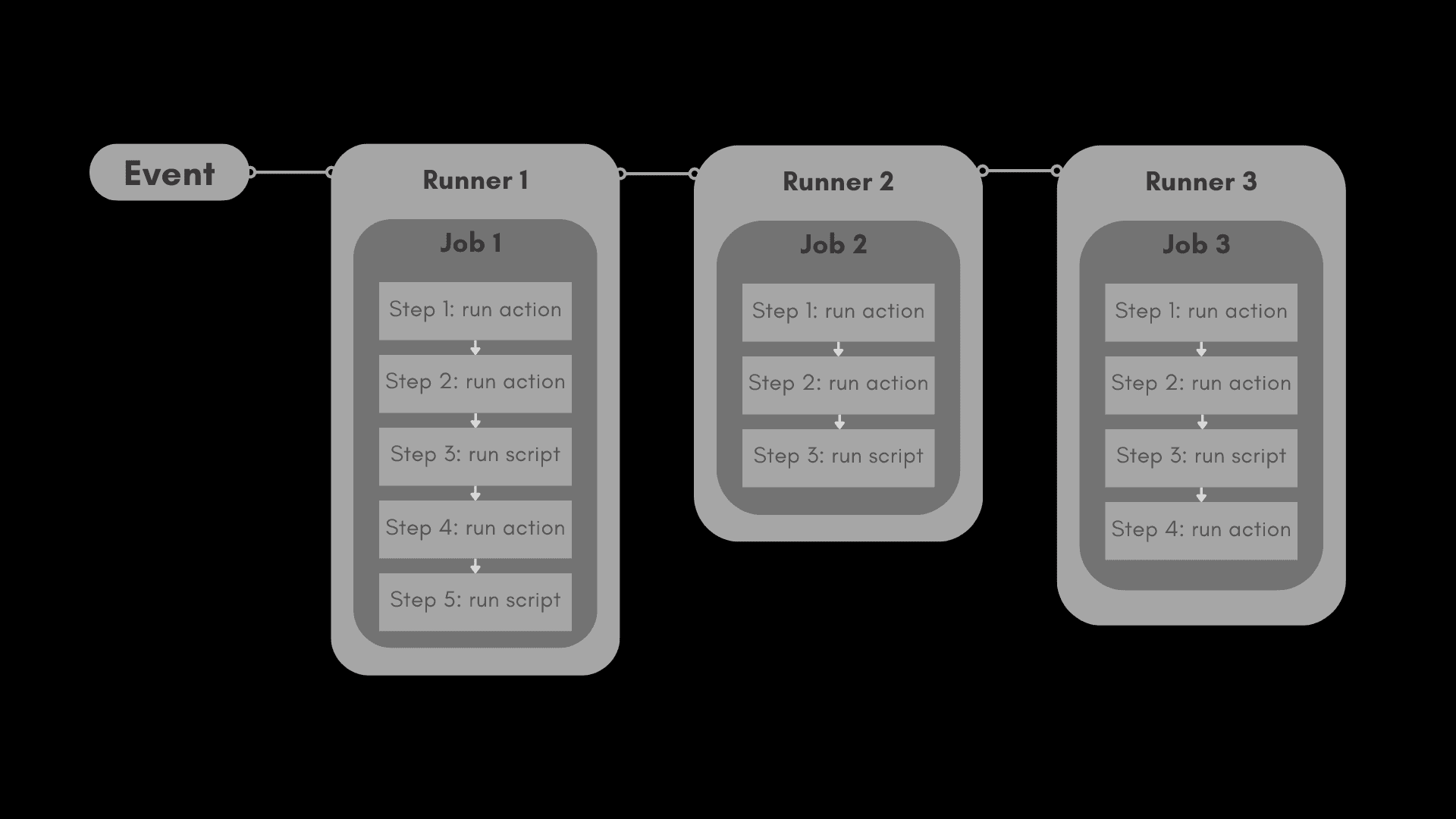
In the image above, we see an example of the basic components of GitHub Actions. A workflow is triggered by a specific event. In this case, we have 3 jobs. Job 3 depends on Job 2, and Job 2 depends on Job 1, meaning these jobs will execute sequentially. As we can see, each job is located on a different runner.
Continuous Integration and Continuous Delivery (CI/CD)
CI/CD processes can be performed manually, although this is usually not the preferred method due to its time-consuming nature. A good CI/CD workflow automates all the processes that we would otherwise have to do manually after finishing writing some piece of code. This can include build, test, deploy, and so on. The essence of CI/CD is to provide more time for developing the code itself, instead of wasting that time on processes that can be automated. If you want to read more about deployment automation, you can find further information in one of our previous blog posts.
GitHub Actions offer us a form of transparency by allowing us to see the logs of a workflow, and they also provide visual workflow builders that make it easier for us to track which workflows are currently running, what dependencies exist between jobs, and many other capabilities that enable developers to troubleshoot and understand the workflows more easily.
Automating deployment on AWS ECS
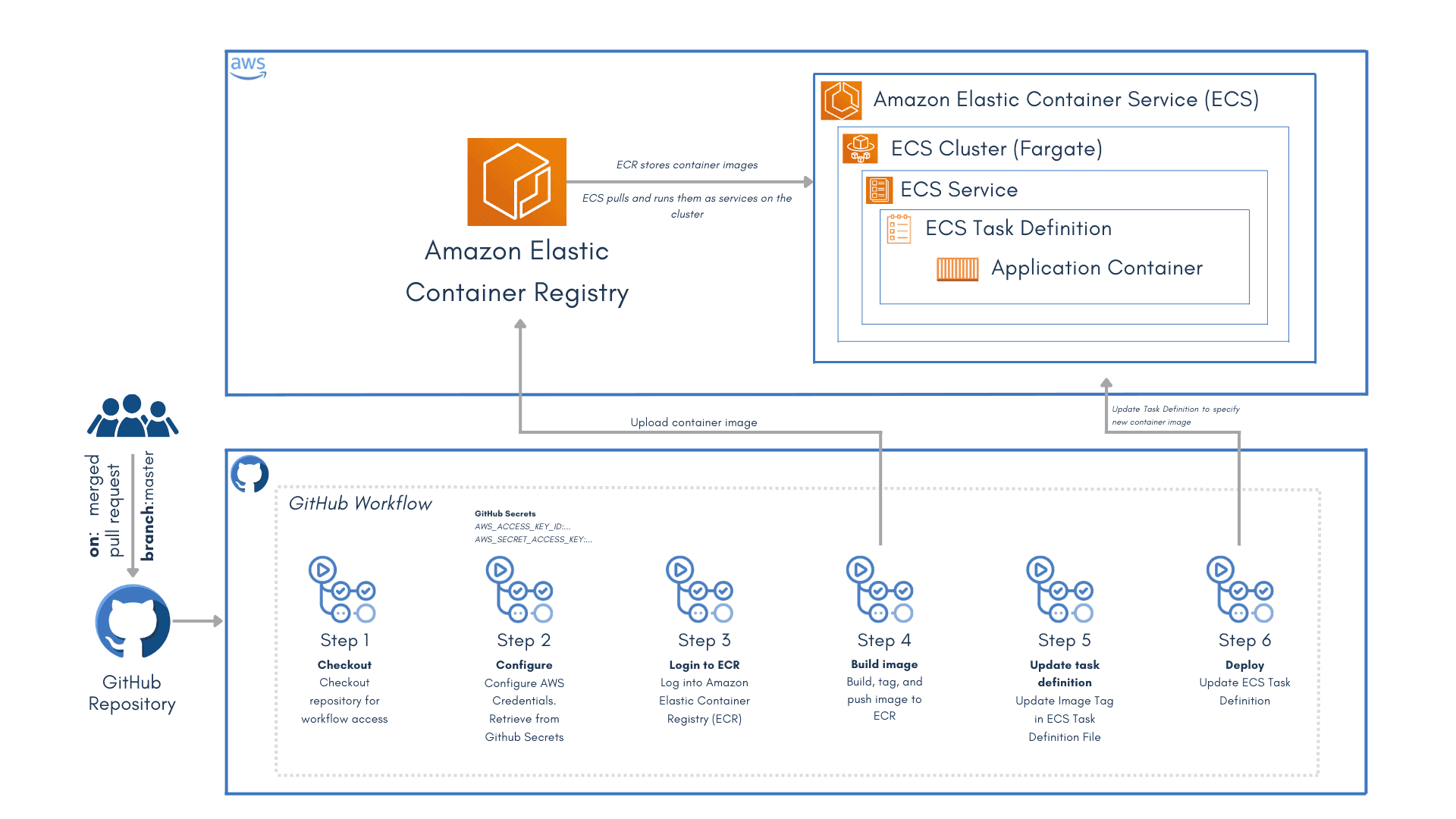
Now that we've mentioned the basic components of GitHub Actions and familiarized ourselves with some of the advantages and limitations they have, we can create our CI/CD workflow. The workflow we'll create will first create a new release based on labels set on pull requests using semantic release rules (major.minor.patch) and tag our GitHub repository. Then, in job number 2, it will build, tag, and push Docker images to the AWS ECR repository, and in the final job, it will handle the deployment of those images to AWS ECS.
name: CI/CD on: pull_request: types: - closed branches: - main paths-ignore: - '.github/workflows/**' - 'README.md'
In the GitHub Actions header, we provide a name that will only be visible within the GitHub visual workflow builder, and then we specify the workflow trigger. In this case, the trigger is a closed pull request on the main branch. Additionally, we've added paths-ignore, which determines that the workflow won't be triggered if changes occur only in those specified paths that we mention. In this scenario, the workflow won't be triggered if changes occur in README.md or in the path .github/workflows/ because it doesn't make sense to deploy a new version of the code if only README.md has changed or if there's a change in GitHub workflows that also don't affect the functionality of our code, i.e., the application.
Job 1: repository_tagging
jobs: repository_tagging: if: github.event.pull_request.merged == true && !contains(github.event.pull_request.labels.*.name, 'no_release') name: Repository tagging runs-on: ubuntu-latest timeout-minutes: 10 steps: - name: checkout uses: actions/checkout@v4 with: fetch-depth: 0 token: ${{ secrets.TOKEN_WITH_PERMISSIONS }} - uses: actions/setup-node@v4 with: node-version: 20 - name: Looking for patch changes if: ${{ contains(github.event.pull_request.labels.*.name, 'version:patch') }} run: echo "NEW_VERSION=$(npm version patch --no-git-tag-version --tag-version-prefix='')" >> $GITHUB_ENV - name: Looking for minor changes if: ${{ contains(github.event.pull_request.labels.*.name, 'version:minor') }} run: echo "NEW_VERSION=$(npm version minor --no-git-tag-version --tag-version-prefix='')" >> $GITHUB_ENV - name: Looking for major changes if: ${{ contains(github.event.pull_request.labels.*.name, 'version:major') }} run: echo "NEW_VERSION=$(npm version major --no-git-tag-version --tag-version-prefix='')" >> $GITHUB_ENV - name: Set outputs id: version_output run: echo "new_version=${NEW_VERSION}" >> $GITHUB_OUTPUT - name: Push tag run: | git config --global user.email "tag@presentation.com" git config --global user.name "GitHub Action" git add . git commit -m "New version: ${NEW_VERSION}" git tag -a "v${NEW_VERSION}" -m "Release ${NEW_VERSION}" git push origin main -f --tags outputs: new_version: ${{ steps.version_output.outputs.new_version }}
We've named Job number 1 repository_tagging. As you can see, it only runs if the condition is met that the GitHub event is a merged pull request and that the GitHub label set on the pull request is not ‘no_release’ . Within our repository, we've added four labels: 'version:patch', 'version:minor', 'version:major', and 'no_release' . If the 'no_release' label is set, this job won't execute, and later we'll see that the same applies to the other jobs as well.
If the mentioned condition is met, the first job is triggered, which runs on a runner using the ubuntu-latest system. We've also specified the timeout-minutes parameter, indicating after how many minutes the workflow will automatically stop if it doesn't finish. This is very useful if you roughly know how long your jobs take, to prevent unnecessary consumption of free GitHub minutes if, for example, our workflow somehow gets stuck.
The first step is the checkout. In it, we checkout our repository, in this case using a personal access token to give access to the workflow to push commits and tag the repository.
After that, depending on the label set on the pull request, we increment the corresponding version. It's important to note that this is the use case if we have a package.json file . If you have Python services, for example, you can manually create an initial tag and then create an action that will increase that tag based on the label.
Next, we set the output for this job with the new version and use it to tag our repository.
Finally, we specify the output of this job, which will again be a new version, and we'll use this output in the subsequent jobs.
Job 2: push_to_ecr
push_to_ecr: needs: repository_tagging runs-on: ubuntu-latest timeout-minutes: 30 steps: - name: Checkout uses: actions/checkout@v4 - name: Configure AWS credentials uses: aws-actions/configure-aws-credentials@v4 with: aws-region: eu-central-1 role-duration-seconds: 900 role-to-assume: ${{ secrets.ROLE_TO_ASSUME }} - name: Login to Amazon ECR id: login-ecr uses: aws-actions/amazon-ecr-login@v2 with: registries: ${{ secrets.ECR_ACCOUNT_ID }} - name: Build, tag, and push image to Amazon ECR id: build env: ECR_REGISTRY: ${{ steps.login-ecr.outputs.registry }} ECR_REPOSITORY: ${{ secrets.ECR_REPOSITORY }} IMAGE_TAG: ${{ needs.repository_tagging.outputs.new_version }} run: | docker build -t $ECR_REGISTRY/$ECR_REPOSITORY:latest -t $ECR_REGISTRY/$ECR_REPOSITORY:$IMAGE_TAG . docker push $ECR_REGISTRY/$ECR_REPOSITORY:$IMAGE_TAG docker push $ECR_REGISTRY/$ECR_REPOSITORY:latest echo "IMAGE_TAG=$IMAGE_TAG" >> $GITHUB_OUTPUT outputs: IMAGE_TAG: ${{ steps.build.outputs.IMAGE_TAG }}
Job number 2 is responsible for building, tagging, and pushing Docker images to the ECR repository. Using the keyword needs , we specify the dependencies of this job. Here, we've stated that the job push_to_ecr depends on the repository_tagging job. Since this is a new job and it runs on a new runner, we need to perform the checkout step again. Then, we configure the AWS credentials, using the official AWS action for this purpose. After configuring the AWS credentials, we'll log in to ECR also using the AWS action. Then, we'll proceed to build, tag, and push the images to the corresponding ECR repository.
Of course, in order for all of this to work, we need to have values set for secrets in our repository. If we use the same secrets across multiple repositories, we can set those secrets at the GitHub organization level.
Job 3: deploy
deploy: needs: [repository_tagging, push_to_ecr] runs-on: ubuntu-latest timeout-minutes: 30 # These permissions are needed to interact with GitHub's OIDC Token endpoint. permissions: id-token: write contents: read env: IMAGE: "${{ secrets.ECR_ACCOUNT_ID }}.dkr.ecr.eu-central-1.amazonaws.com/${{ secrets.ECR_REPOSITORY }}:${{ needs.push_to_ecr.outputs.IMAGE_TAG }}" TASK_DEFINITION: ${{ secrets.TASK_DEFINITION }} CONTAINER_NAME: ${{ secrets.CONTAINER_NAME }} ECS_FARGATE_SERVICE: ${{ secrets.ECS_FARGATE_SERVICE }} ECS_CLUSTER: ${{ secrets.ECS_FARGATE_CLUSTER }} TOKEN: ${{ secrets.TOKEN_WITH_PERMISSIONS }} steps: - name: Configure AWS credentials uses: aws-actions/configure-aws-credentials@v4 with: aws-region: eu-central-1 role-duration-seconds: 900 role-to-assume: ${{ secrets.ROLE_TO_ASSUME }} - name: Download task definition run: | aws ecs describe-task-definition --task-definition $TASK_DEFINITION --query taskDefinition > task-definition.json - name: Fill in the new image ID in the Amazon ECS task definition id: task-def uses: aws-actions/amazon-ecs-render-task-definition@v1 with: task-definition: task-definition.json container-name: ${{ env.CONTAINER_NAME }} image: ${{ env.IMAGE }} - name: Deploy Amazon ECS task definition uses: aws-actions/amazon-ecs-deploy-task-definition@v1 with: task-definition: ${{ steps.task-def.outputs.task-definition }} service: ${{ env.ECS_FARGATE_SERVICE }} cluster: ${{ env.ECS_CLUSTER }} wait-for-service-stability: true - name: Notify for deploy failure if: failure() uses: slackapi/slack-github-action@v1.22.0 with: payload: | { "username": "Deployment failed!", "text": "Check status here ${{ github.server_url }}/${{ github.repository }}/actions/runs/${{ github.run_id }}" } env: SLACK_WEBHOOK_URL: ${{ secrets.SLACK_NOTIFICATIONS_WEBHOOK }} - name: Notify for new deployment version if: success() uses: slackapi/slack-github-action@v1.22.0 with: payload: | { "username": "New deployment!", "text": "New version for service is deployed." } env: SLACK_WEBHOOK_URL: ${{ secrets.SLACK_NOTIFICATIONS_WEBHOOK }}
The last job is the deploy job. The deploy job depends on the repository_tagging and push_to_ecr steps and won't start until those two jobs are completed before it. First, we specify the permissions required for the GitHub OIDC Token, and in addition to that, we list the variables needed for this job. Using AWS actions, we configure the credentials and deploy the new version of the task definition. After a successful or unsuccessful deployment of the new service version, we send the appropriate message to Slack. Of course, the last two steps are optional but can be very useful to keep team members informed about the deployment of a new version.
Reusable workflows
Today, the most common practice is to use a microservices architecture, which from GitHub's standpoint would mean having a GitHub repository for each service. Given that we have multiple services requiring the same CI/CD, we have to add identical CI/CD workflows to each repository.
Consider a scenario where we have 10 services and need to change a single line in all CI/CD workflows for those services. We would have to modify each workflow one by one, commit, push, and create 10 pull requests.
To avoid such situations, we can use Reusable Workflows. Reusable Workflows allow us to create a central workflow and call it from elsewhere with specific parameters. Reusing workflows avoids duplication. This also enables easier maintenance of our CI/CD workflows and facilitates the creation of new workflows. It's enough to modify the reusable workflow, and it will automatically update all other workflows using it. Versioning of reusable workflows is also possible; when calling a workflow, we can provide it with a reference to a specific tag, branch, or commit sha.
Access to reusable workflows
There are several ways in which one workflow can access a reusable workflow:
- Both workflows are in the same repository.
- The reusable workflow is stored in a public repository.
- The reusable workflow is stored in a private repository, with repository settings allowing access to that workflow.
Limitations
There are certain limits we need to pay attention to when using reusable workflows:
- It is possible to connect up to 4 levels of workflows. So, it is possible to have a situation like this: workflow.yaml --> reusable-workflow.yaml --> reusable-workflow2.yaml --> reusable-wokflow3.yaml . If you want to read more about this, you can find it in the GitHub documentation for nesting reusable workflows.
- It is possible to call a maximum of 20 reusable workflows from one workflow file. This also includes nested reusable workflows. So, the example of nested workflows above will count as 3 reusable workflows.
- All variables set in the env context in a reusable workflow will not be passed to the workflow that calls it. To achieve this, you need to use outputs. See using outputs from a reusable workflow for more information.
- An error in modifying something in a reusable workflow creates an issue at the organizational level. If we make that mistake, every caller workflow will have an issue because the problem is in the reusable workflow.
Creating a reusable workflow
Reusable workflows are YAML-formatted files and are very similar to other workflow files. It might be best practice to have a single repository where all reusable workflows are stored. Depending on the size of the project you are working on, it is very possible that as the project develops, you will need dozens of reusable workflows, and it will be easier to maintain them if they are located in one repository.
For a workflow to be reusable, the value for on must be workflow_call . The workflow can pass inputs and secrets to the reusable workflow. In the reusable workflow, it is first necessary to specify the inputs and secrets that will be passed to it, then they are referenced within some of the jobs of that reusable workflow, and finally they are passed within the workflow that calls that reusable workflow. Here is an example of a reusable workflow.
name: Reusable workflow example on: workflow_call: inputs: config-path: required: true type: string secrets: token: required: true jobs: triage: runs-on: ubuntu-latest steps: - uses: actions/labeler@v4 with: repo-token: ${{ secrets.token }} configuration-path: ${{ inputs.config-path }}
Calling reusable workflow
A reusable workflow is called using the 'uses' keyword. It's best to reference a reusable workflow using the following syntax:
{owner}/{repo}/.github/workflows/{filename}@{ref}
It's important to note that reusable workflows, unlike actions, are called within the job itself, not within a step of a job. The data type of the input value must match the type specified in the reusable workflow (either boolean, number, or string). When calling a reusable workflow, parameters such as runs-on, steps, and so on are not specified. The caller workflow retrieves these values from the reusable workflow.
name: Call a reusable workflow on: pull_request: branches: - main jobs: call-workflow: uses: cyberlab/example-repo/.github/workflows/reusable_workflow.yaml@main with: config-path: .github/labeler.yml secrets: token: ${{ secrets.GITHUB_TOKEN }}
Conclusion
GitHub Actions is one of the most widely used platforms for CI/CD today. By using GitHub Actions, we can manage software development, perform automated testing, reduce the risk of human errors, and speed up software delivery to production environments. GitHub Actions are seamlessly integrated into the GitHub platform, which further facilitates their use and management, especially if our code is stored on GitHub. Here you can find more about why deployment automation is important, as well as what deployment strategies exist.
I hope I have helped you better understand GitHub Actions and that this blog has been useful to you. See you in our next blog with a new topic!


